You split up at the base in the morning. Your youngest stays near the beginner lift, your teen heads off with friends, and the grandparents plan to stop at the lodge early. By early afternoon you're on a chairlift wondering where everyone is, whether the teen went somewhere they shouldn't, and whether anyone remembered when lunch was. A family ski tracking app is built for this, and in MountainMap the feature is called Family.
Family is part of each resort's MountainMap app on iOS and Android. It works the same way on a large mountain like Alyeska Resort as it does on a smaller hill like Arctic Valley Ski Area. It puts the people you ski with on your resort map and helps you stay in touch with them through the day.
What Family does
Everyone who shares their location shows up on the resort map with their photo. A coloured ring around each photo shows how recent that person's position is. The app also shows how far away each person is and in which direction. Tap a person to see their details.
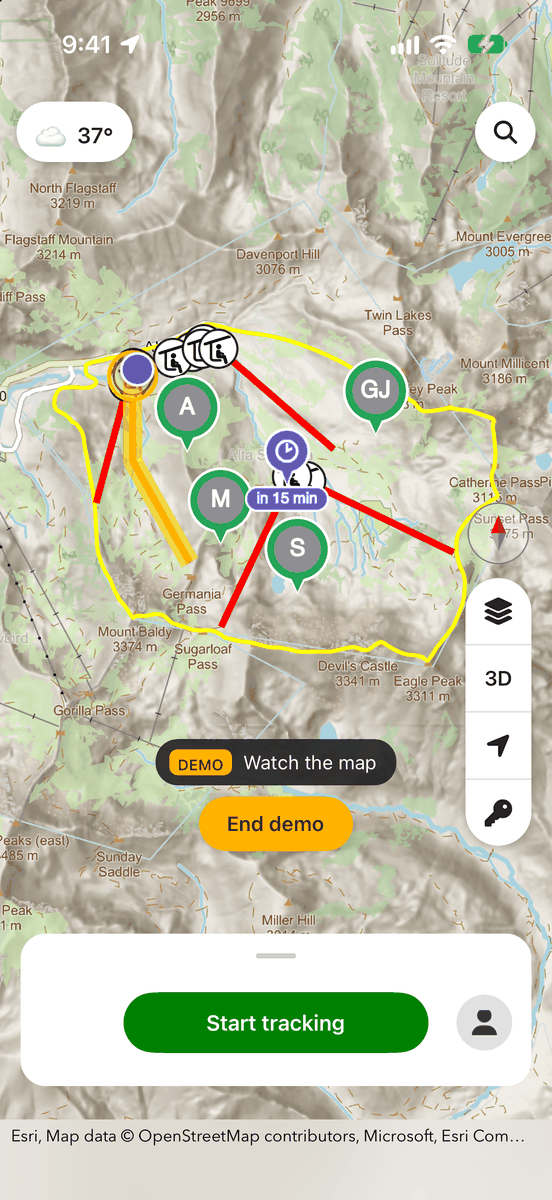
You can also set meetups with a place and a time. The app reminds people before the meetup and tells the family when each person arrives. Say the grandparents head to the lodge at noon. A Lunch meetup at 12:30 can remind everyone 15 minutes ahead and let the family know as each person gets there.
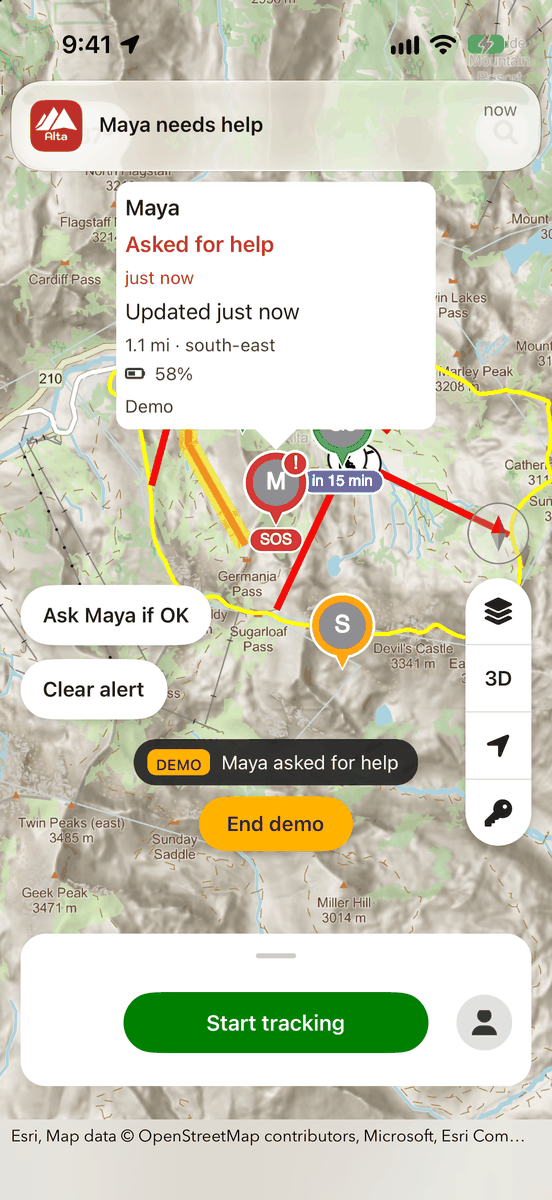
Family also covers safety. Anyone can tap Need help to send a help request, or use Ask if OK to check on someone. The app can also warn the family automatically when:
- a phone goes quiet or its battery runs low
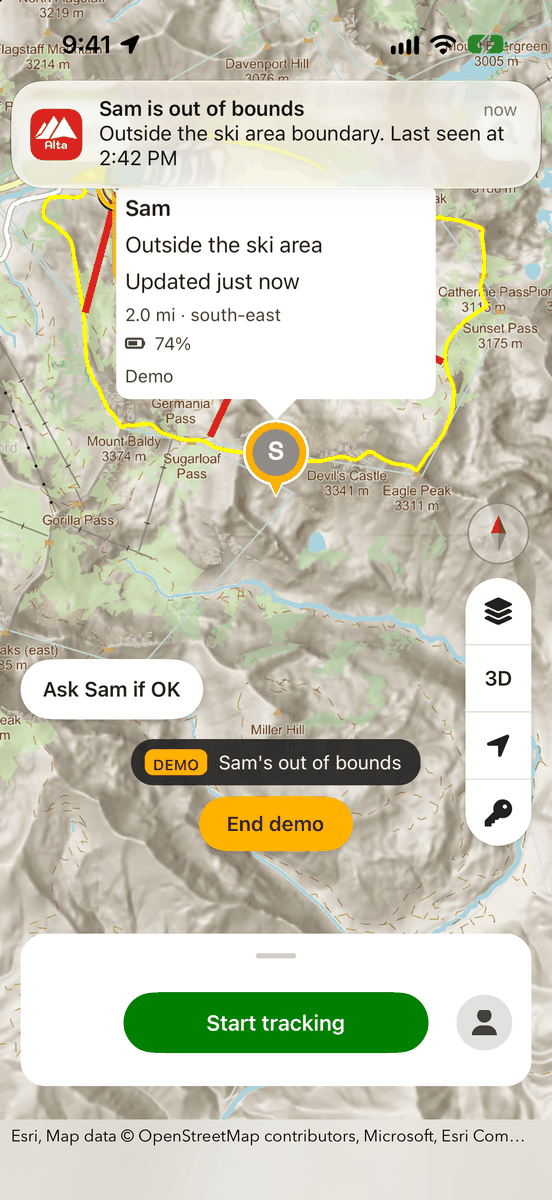
- someone leaves the ski area boundary
- a crash is suspected
- someone stops moving for too long
- a child leaves their zone
- someone is on a run harder than their skill level
For example, if a teen ducks a rope, the family sees them marked "Outside" in orange and gets one alert.
Each person has safety settings: Kid, Teen, Adult or Custom. These decide which alerts apply to that person and who gets told. Family admins manage the family and these settings. A parent skiing the bowls while two kids ride the beginner lifts can see both children on the map. The parent also gets an alert if the youngest leaves the zone around their lift.
How to set it up
- 1. Sign in. Open your resort's MountainMap app and sign in from the home sheet with Continue with Google, Continue with Apple or Continue with email.
- 2. Open Family. Tap the Family card on the home sheet. If you don't have a family yet, you'll see "Bring your family along", a list of the features, a Try the demo button and Get Family Pass.
- 3. Get the pass or join. Tap Get Family Pass to buy the Family membership. If someone in your group already has a family, tap Have an invite? and open the link they sent you.
- 4. Invite people. On the Family page, tap Invite someone and send an invite by QR code or by text. Each invite lasts 7 days.
- 5. Share your location. Turn on Location sharing on the home sheet so the family can see you. You can have it start automatically whenever you start tracking.
- 6. Set safety settings. Tap the gear button on each person's row on the Family page and choose their settings.
- 7. Ski. On the mountain, keep an eye on the family on the map, tap a person for details, add meetups from the Family page, and use Need help or Ask if OK when you need them.
If you want to see how it works before paying, Try the demo fills the map with a made-up family so you can try out the features.
Cost and who it covers
Family is a paid feature. One person buys the Family membership for $59.99 a year. It covers up to six people, and each extra place costs $4.99. People who join through an invite don't need their own pass. On the Family page, the + after the row of place dots lets you invite someone or add a spot.
Tips and limits
- Allow permissions. Location sharing needs location permission. Alerts and meetup reminders need notification permission.
- People only appear while sharing. If someone hasn't turned on location sharing, they won't be on the map. Sharing stops automatically once a phone is more than 3 km outside the ski area boundary, and the feature doesn't work outside the resort.
- Positions aren't continuous. Locations are sent every few minutes. They're sent more often around a meetup and less often when the battery is low and the phone isn't charging. Check the ring colour to see how recent a position is.
- Signal matters. Without a connection, a phone can't send or receive locations. The family list tells you when your own phone's updates are failing. Automatic alerts are worked out on the phones themselves, so their timing depends on the phones having signal.
- Automatic alerts aren't guaranteed. Crash checks, stopped-moving alerts and the other automatic warnings depend on each phone's sensors, battery and signal. Don't rely on them alone.
- A dying battery gives warning. If a phone runs down mid-afternoon, the family gets a low-battery alert first and then an alert when the phone goes quiet.
- It doesn't replace emergency help. Family does not call ski patrol or emergency services. It also has no group chat. The family communicates through alerts, meetup responses and normal text messages.
- It doesn't navigate. The app shows how far away someone is and in which direction. It doesn't give turn-by-turn directions to them, and it doesn't show lift status or trail closures.
- Quiet one person's alerts. Mute for today silences one person's alerts on your own phone only.
- Membership is private. Only members of the family can see each other. The owner and admins can remove members. Anyone except the owner can leave, but someone set as Kid or Teen has to ask an admin.
Skiing with friends instead of family? Crews gives you the same map sharing without the family safety features. If your family likes a bit of competition, the Family tab in Leaderboards ranks everyone in the family.
Getting started
Download the MountainMap app for your resort, whether that's Birch Hill Ski And Snowboard Area or a bigger mountain. Sign in and open the Family card on the home sheet. You can try the demo first, or get the Family Pass and invite everyone before your first chair. Then turn on location sharing and set each person's safety settings so the right people get the right alerts.